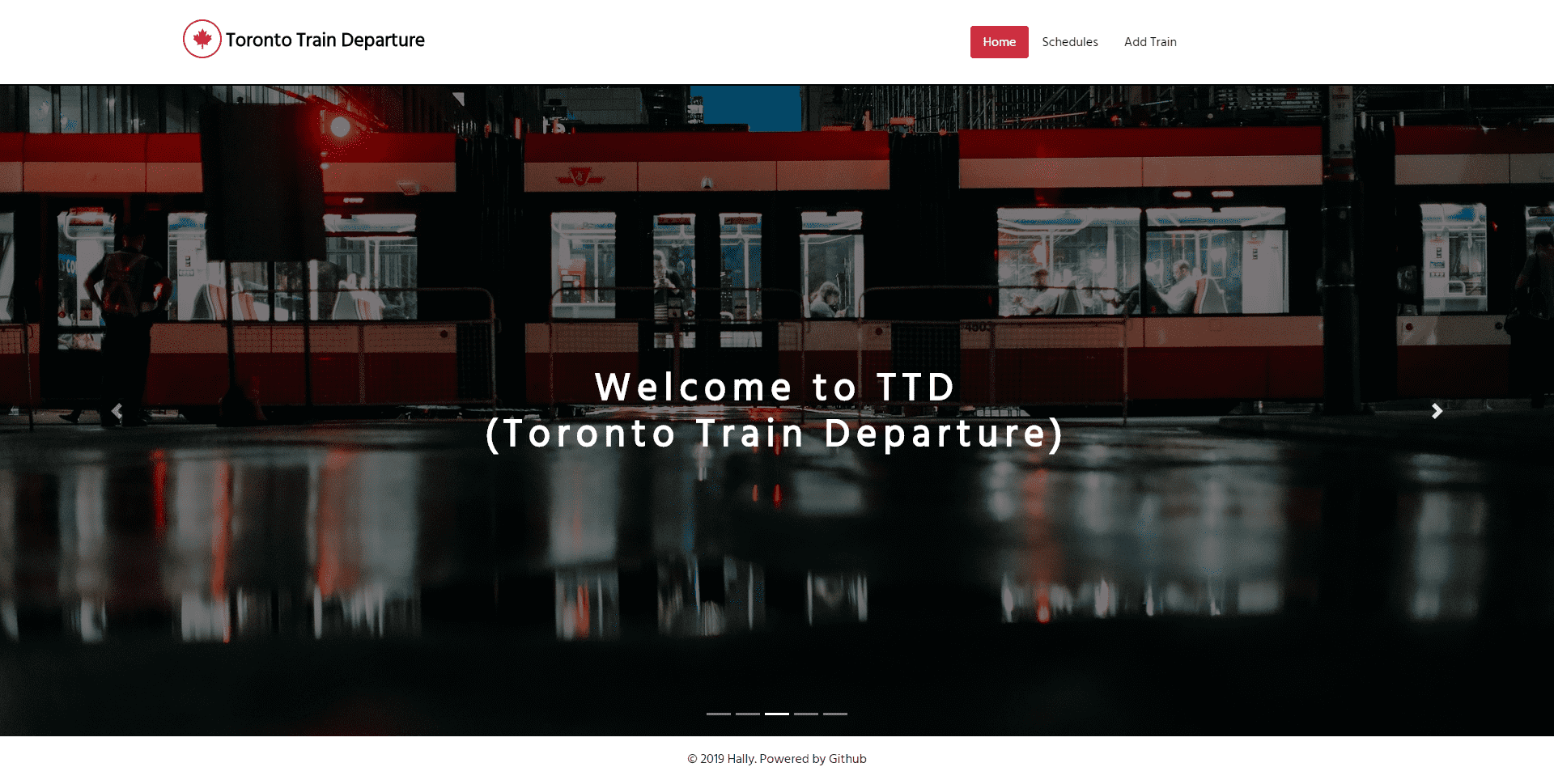
Train Scheduler


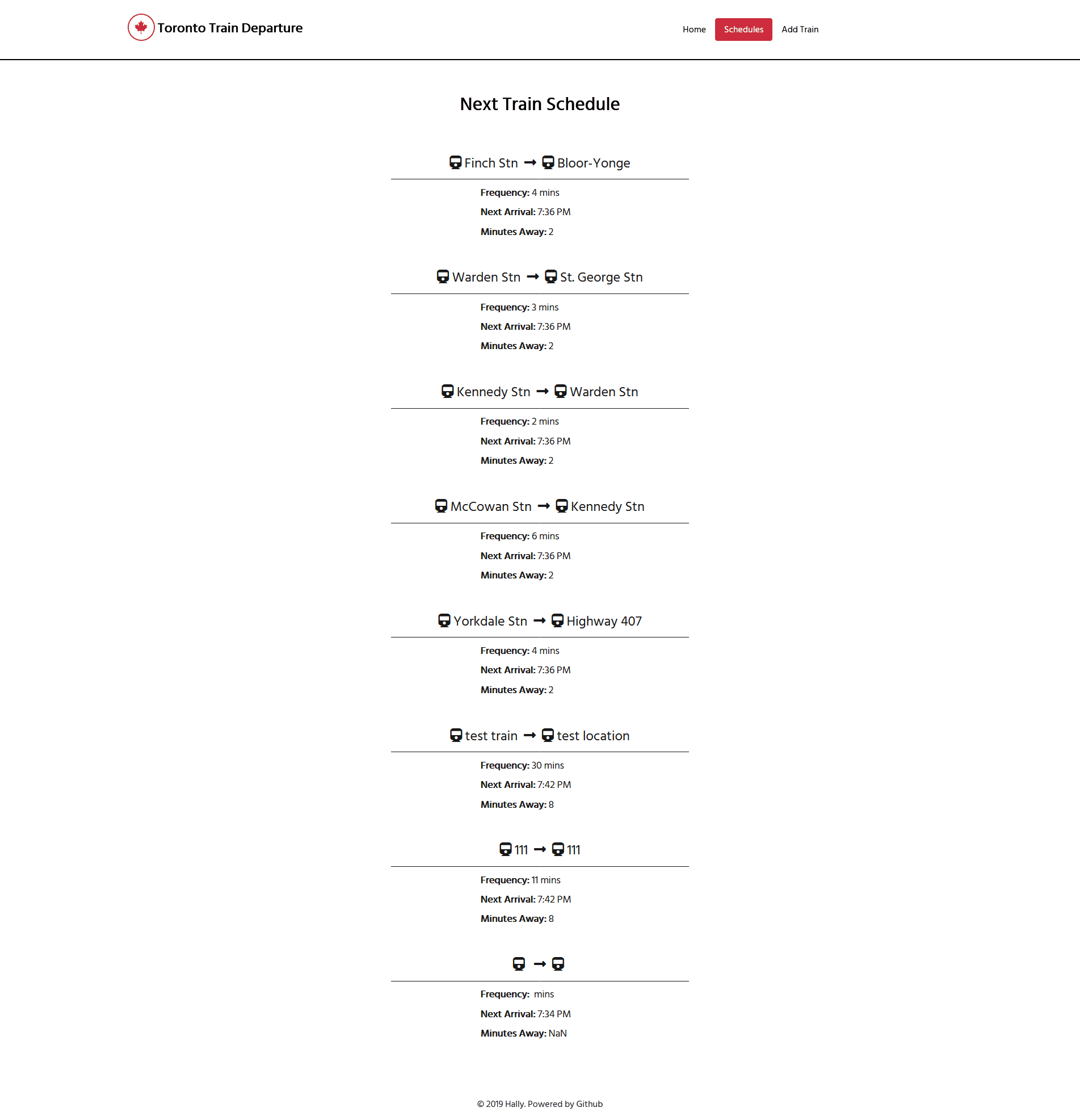
A train schedule application that incorporates Firebase to host arrival and departure data. This app will retrieve and manipulate this information with Moment.js. It will also provide up-to-date information about various trains, namely their arrival times and how many minutes remain until they arrive at their station.
Tools & Technologies
- Bootstrap
- Google Fonts
- Fontawesome
- JavaScript
- jQuery
- MomentJS
- Firebase
Installation
To clone this project to your device, type the code below to your git bash:
git clone https://github.com/itshally/Train-Scheduler-Basic.git
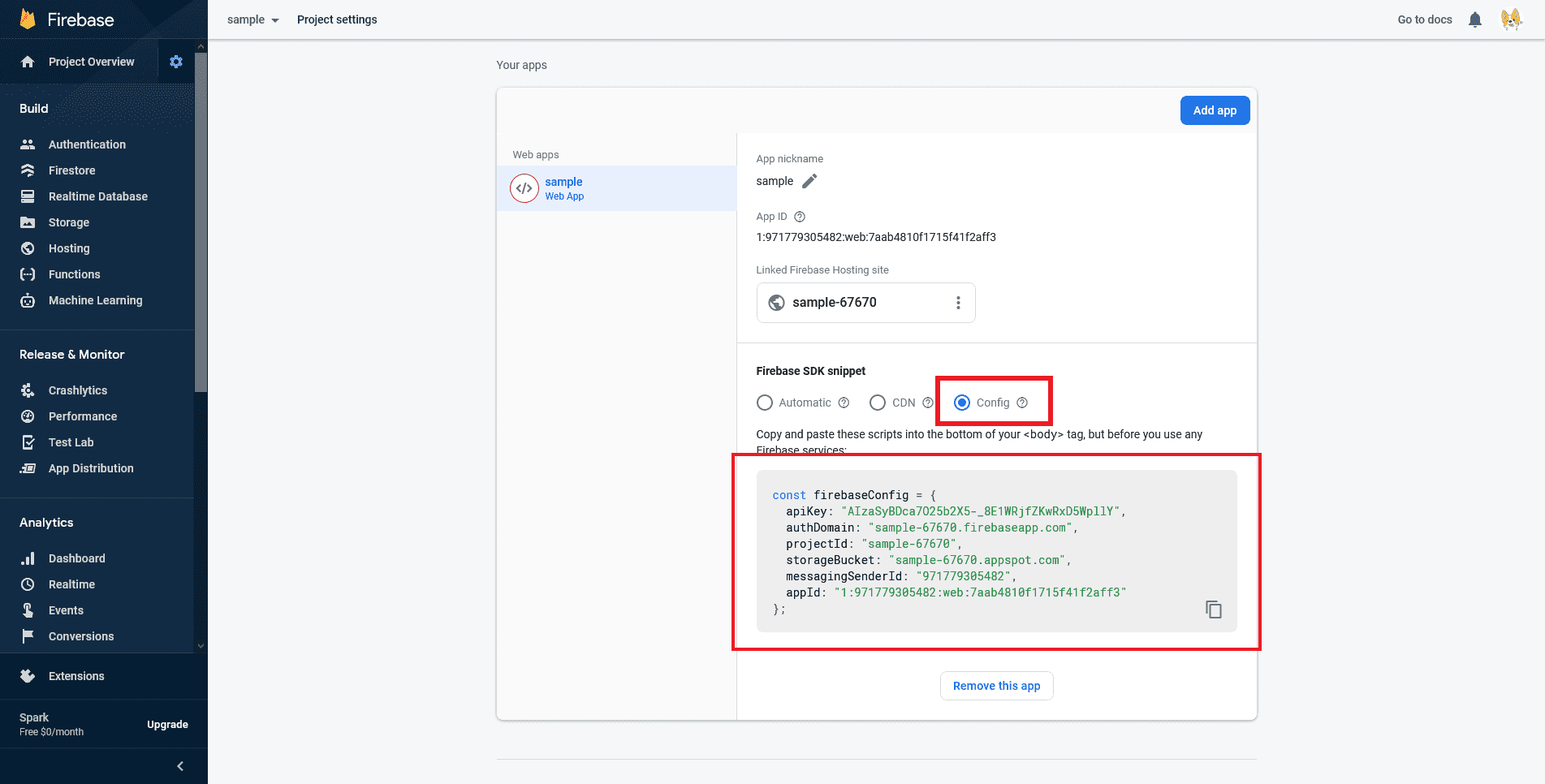
Then in the path assets/javascript/main.js, make sure to configure the lines 2-10 with your own Firebase SDK Snippet.
var  firebaseConfig  =  {

	/**
	* This part is auto filled
	* It includes apiKey, authDomain, databaseURL, projectId, storageBucket,
	* messagingSenderId, and appId
	**/

};
NOTE:
You can find it under your project's settings of your app on your Firebase account.
In order to find and do that...
- Login to your Firebase account
-
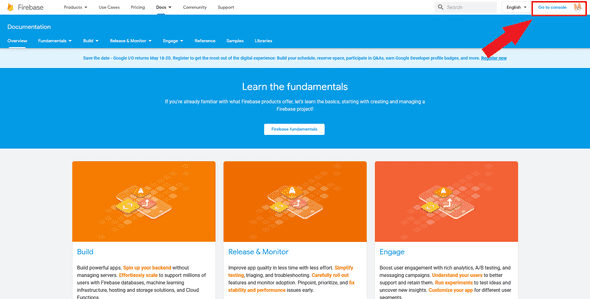
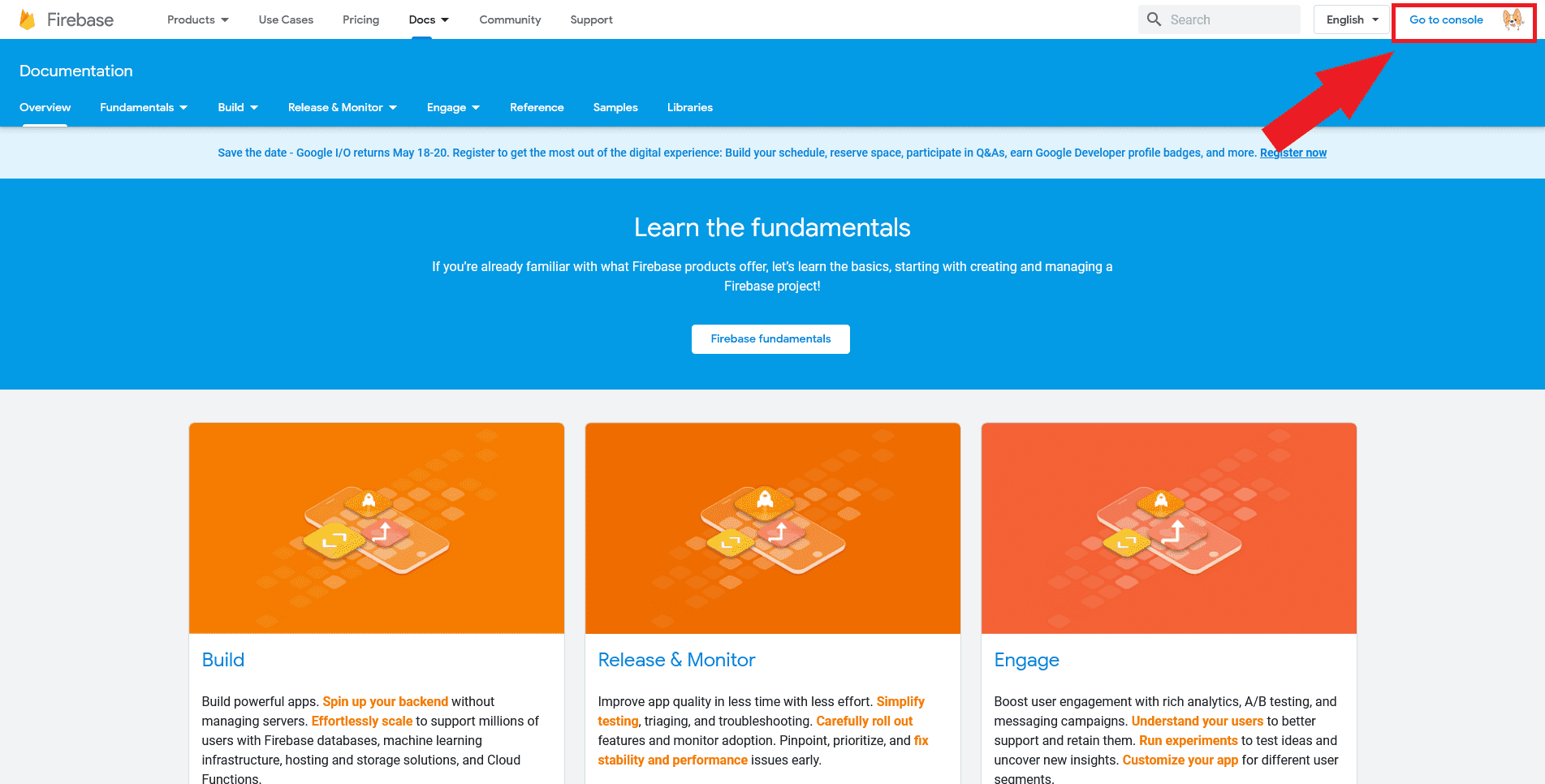
Click the Console button at the top-right corner.
-
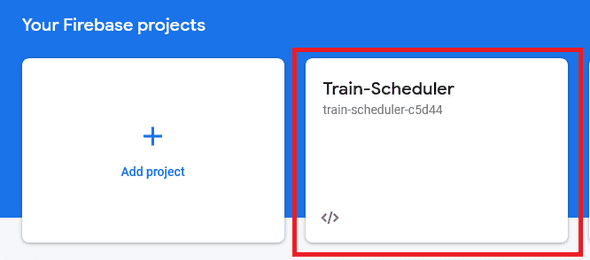
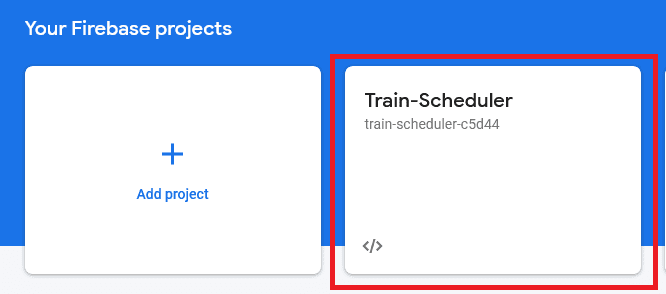
Go to your project's dashboard.
Note:
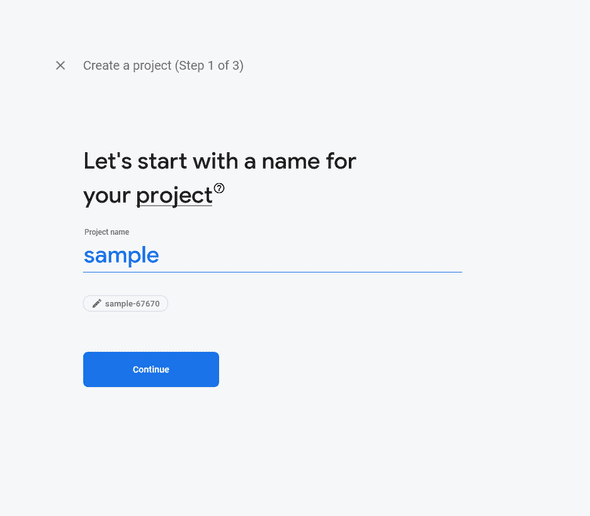
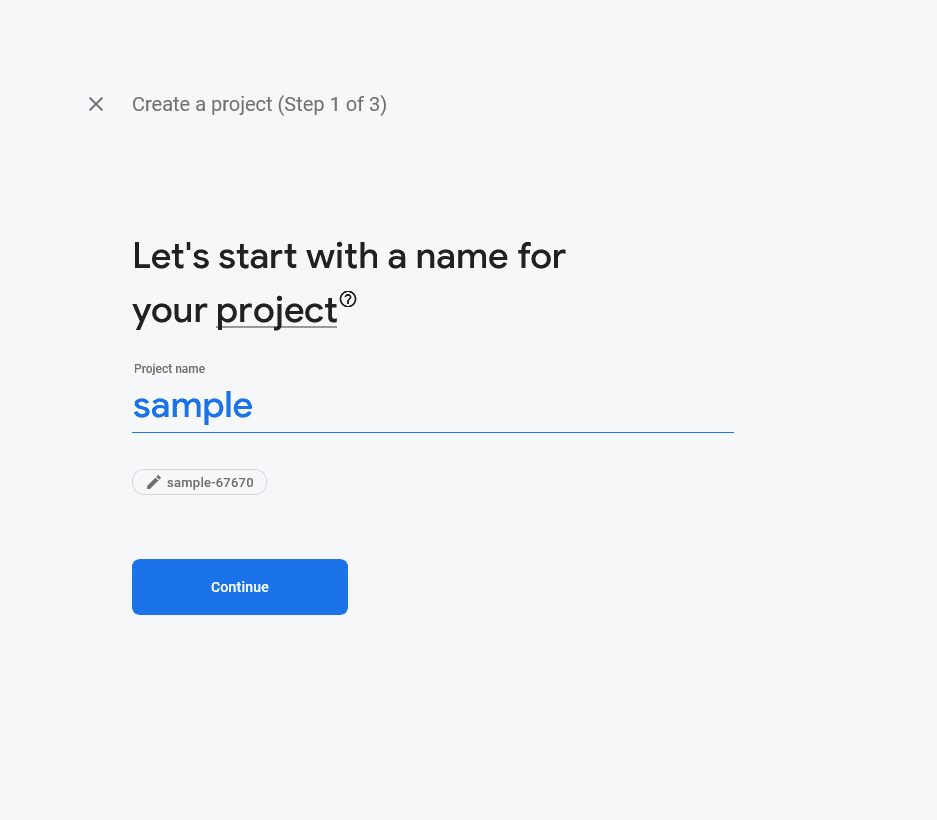
- If you don't have an existing project, please do create one. Simply click the Add project.
- Then, name your project. I named mine as "sample".
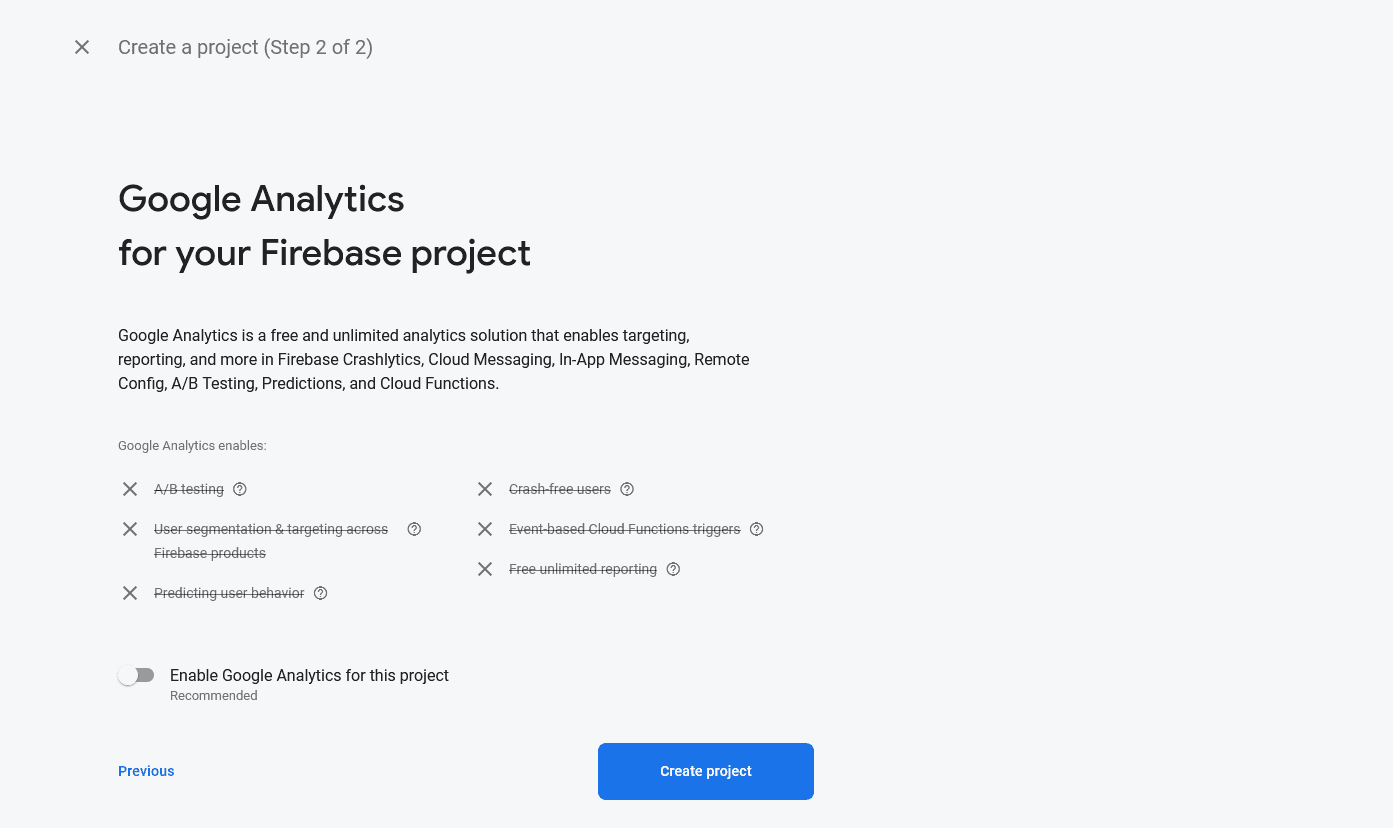
- Step 2 will ask you if you would like to enable Google Analytics. In this case, I disabled it.
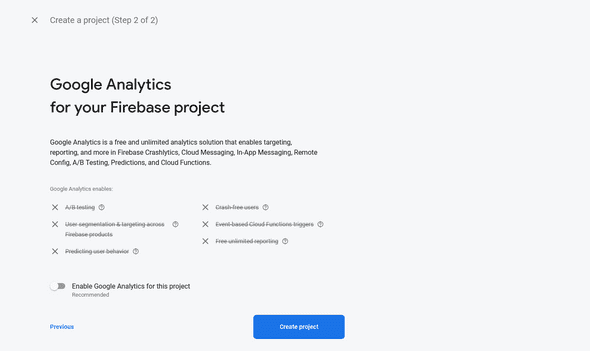
- It will load for a while and will notify you when it's ready.
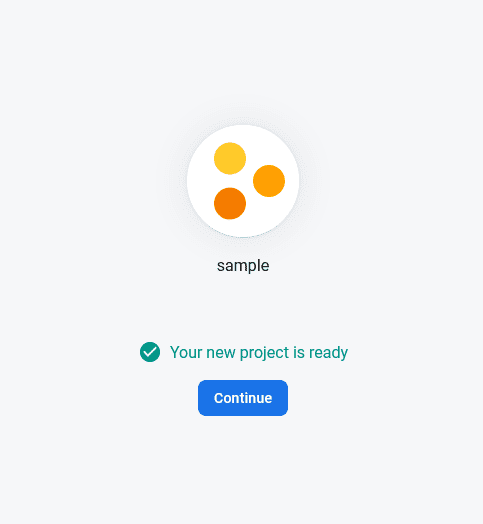
- Click Continue.
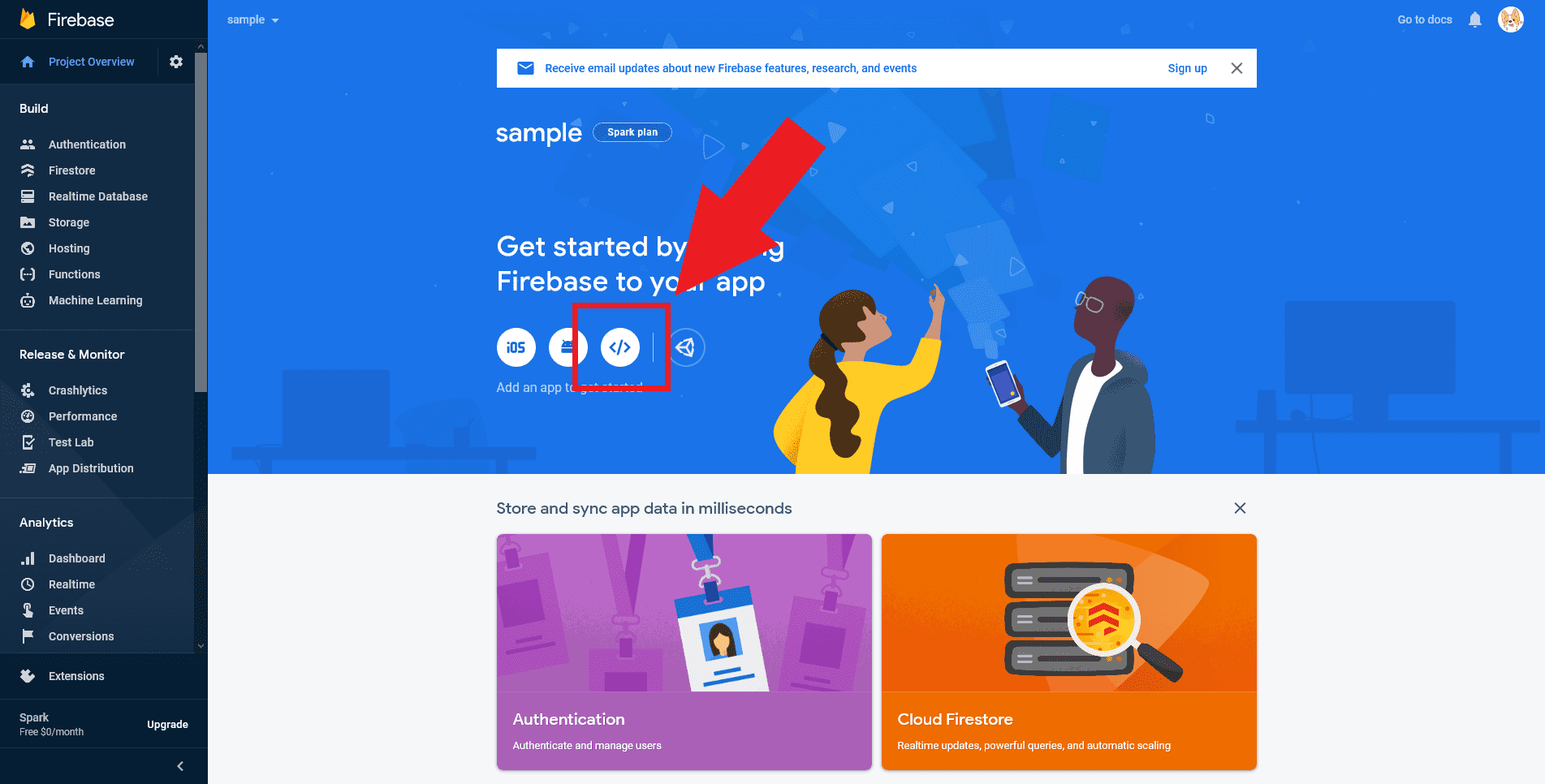
- It will bring you to its dashboard.
- Click the code icon.
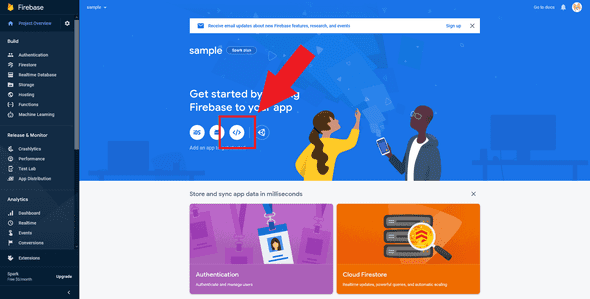
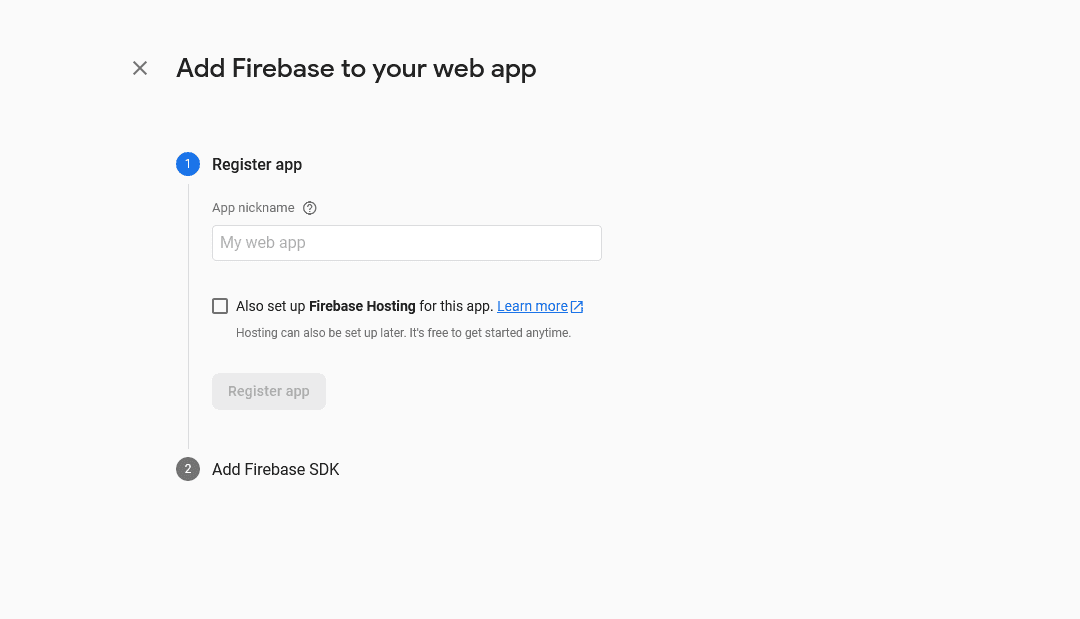
- It will ask you to register your app.
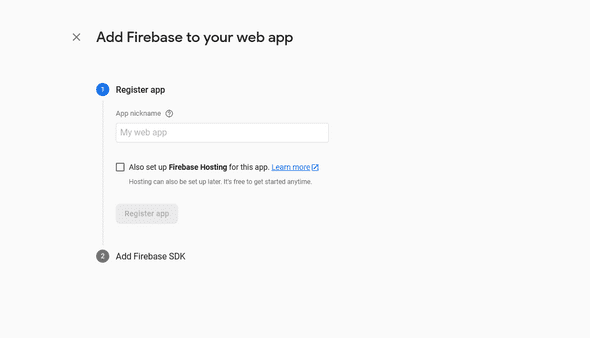
- Make sure to check the checkbox before registering your app.
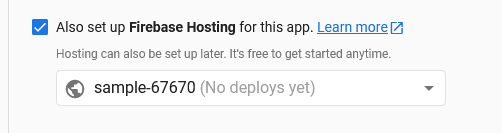
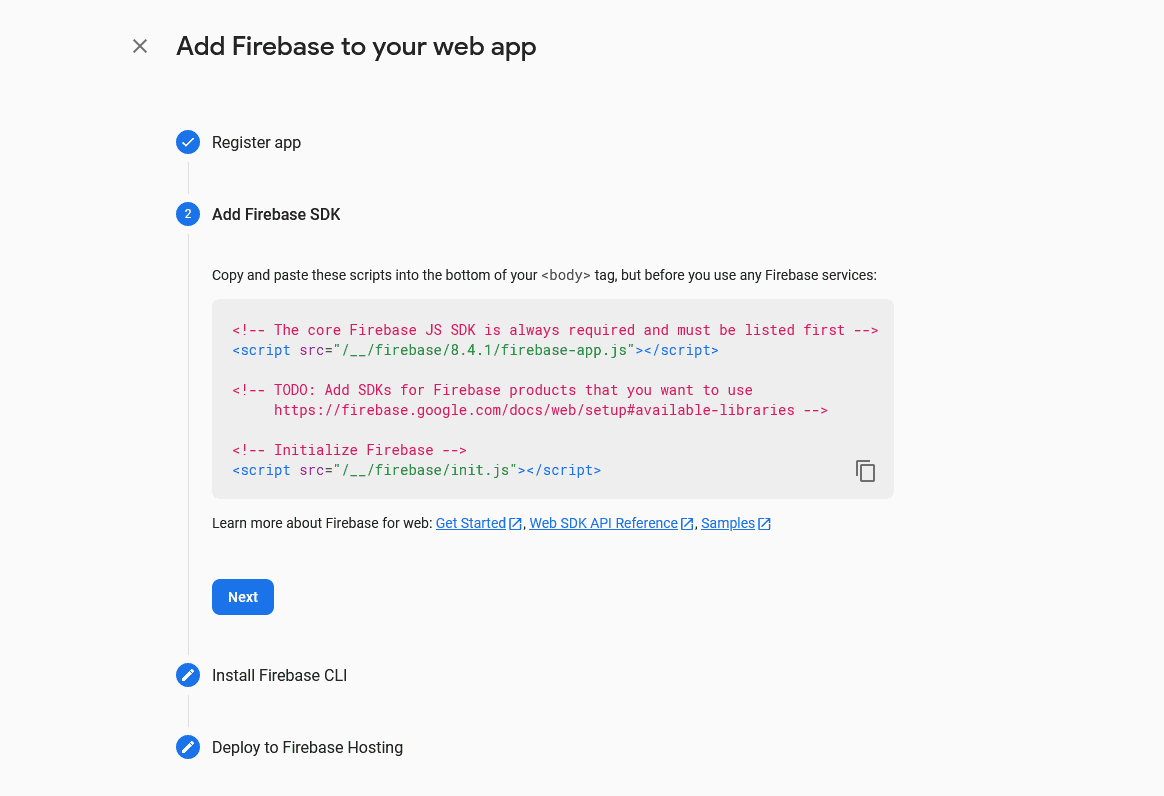
- Then, it will give you an instruction for the Firebase SDK scripts.
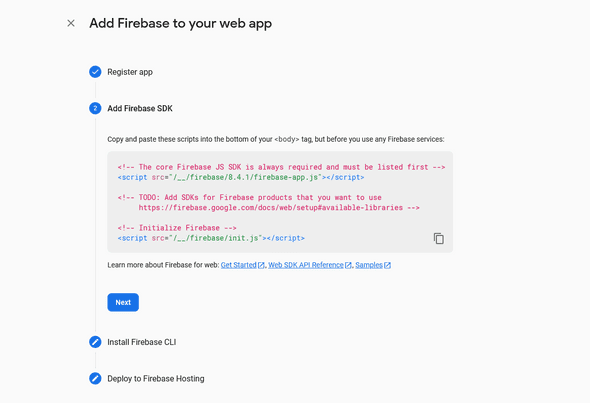
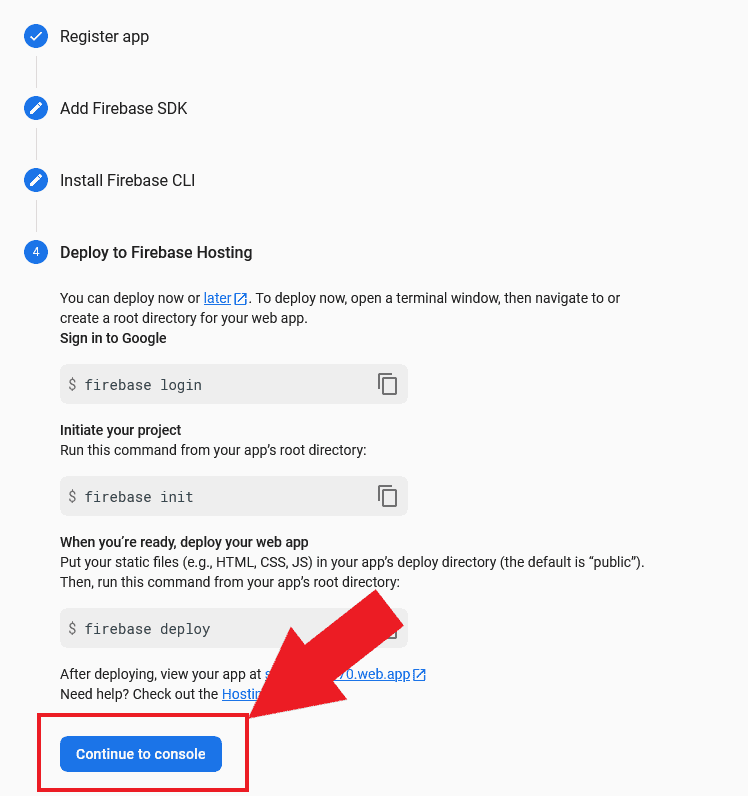
- Install and deploy the firebase hosting. Then click the Continue to console.
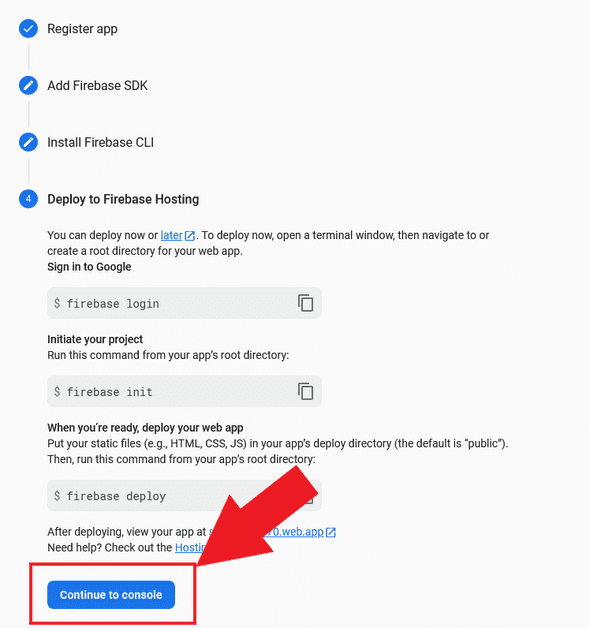
-
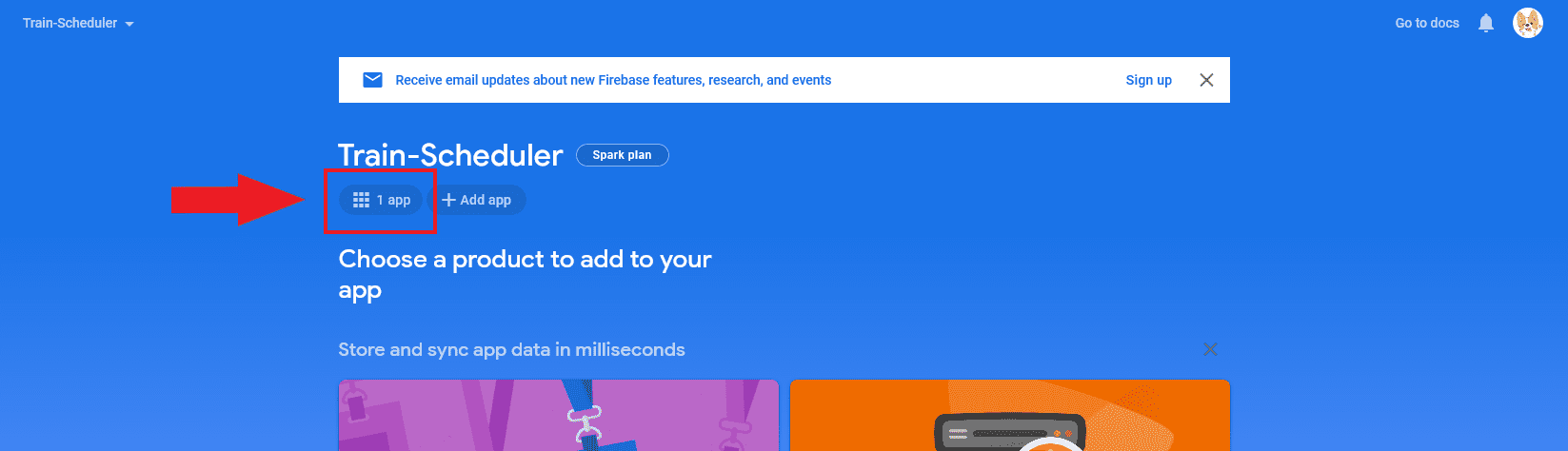
Click that 1 app button.
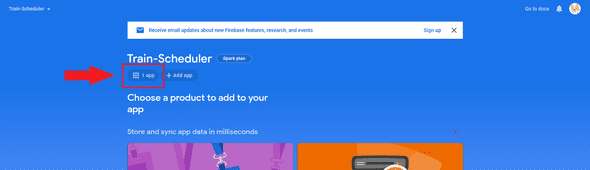
-
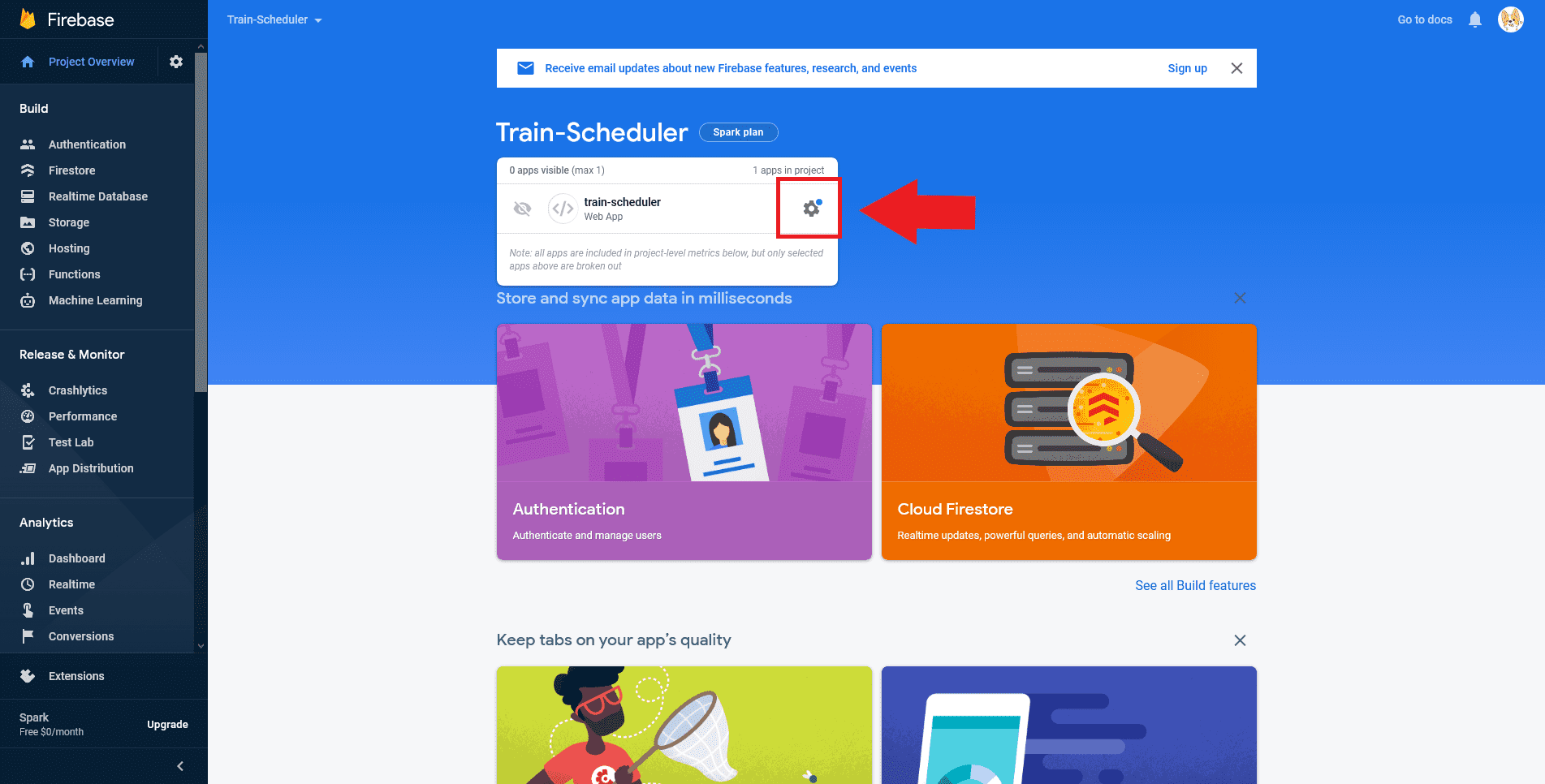
Then, a small window will appear.
-
Click the settings icon.
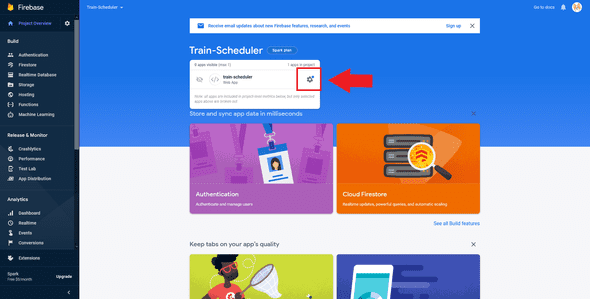
-
It will bring you to the Project setting page. Scroll down and go to the Your apps section.
-
Click the Config radio button so you can get your
firebaseConfigfor your project.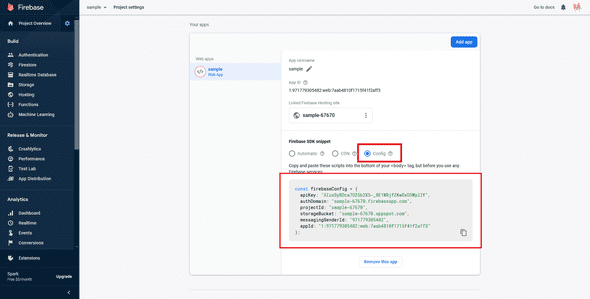
-
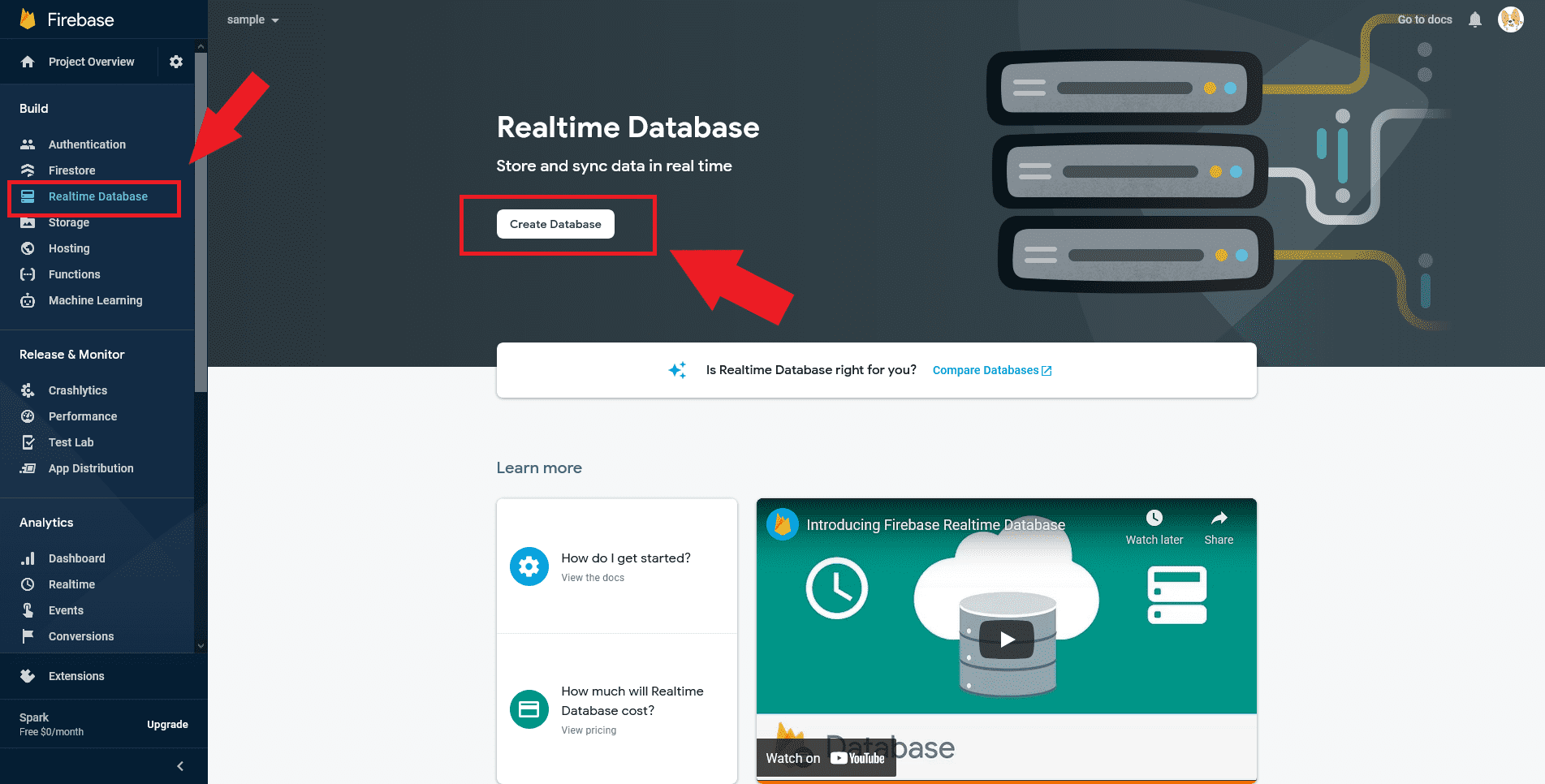
Then on the left sidebar of your project's firebase dashboard, click the Realtime Database tab.
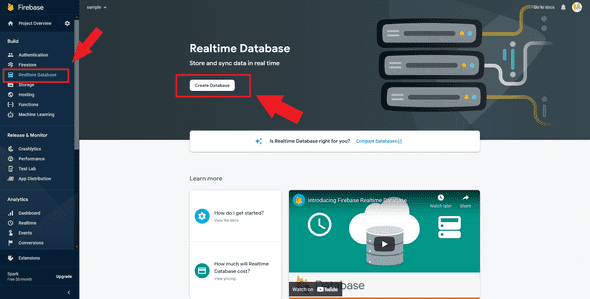
-
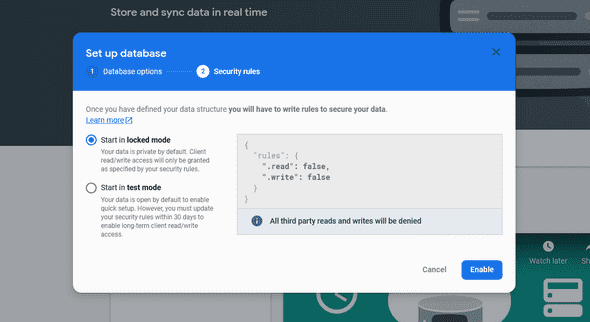
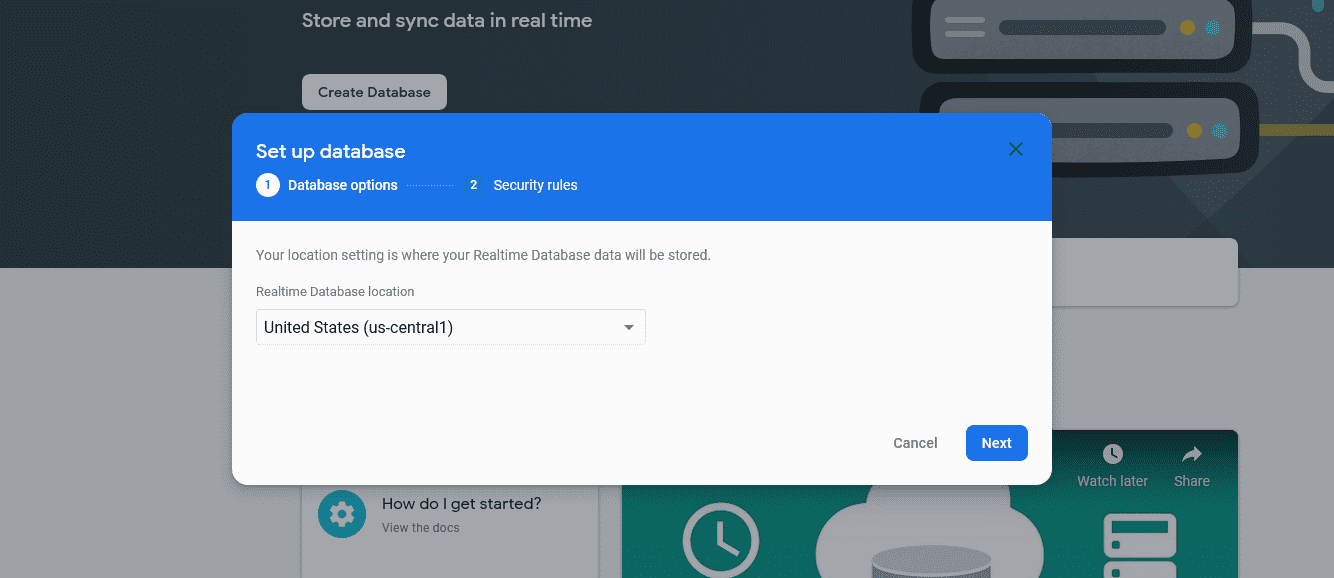
By default, I will just click Next while setting this up.
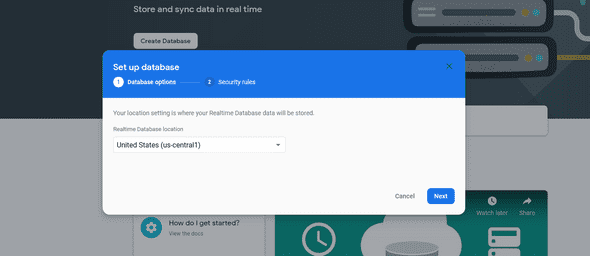
-
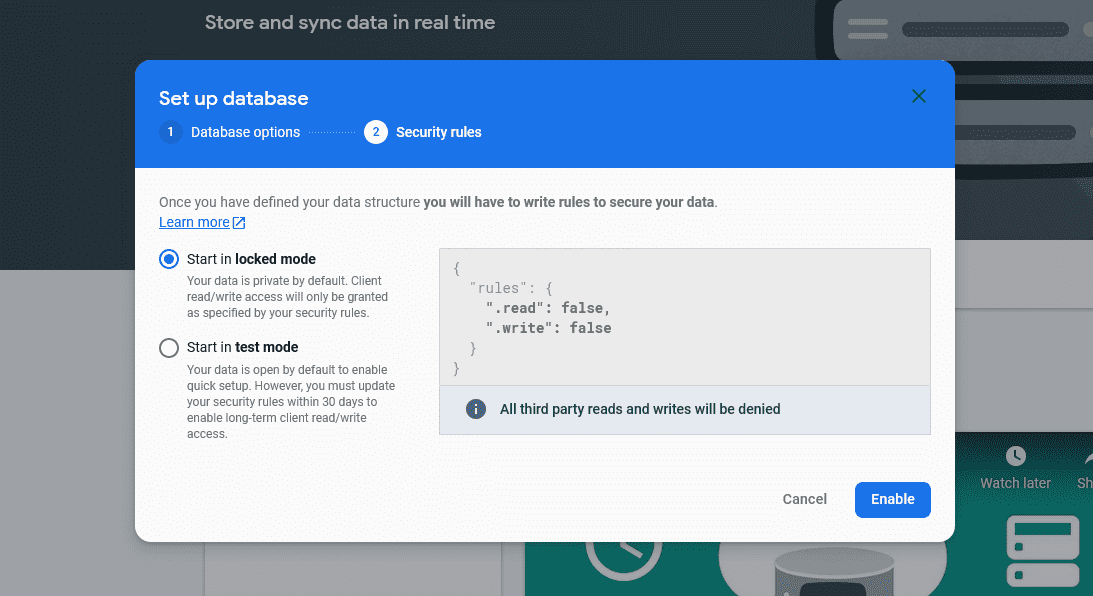
Click Enable to start in locked mode.
-
Go to the Rules tab of your Realtime Database.
-
Then change the following.
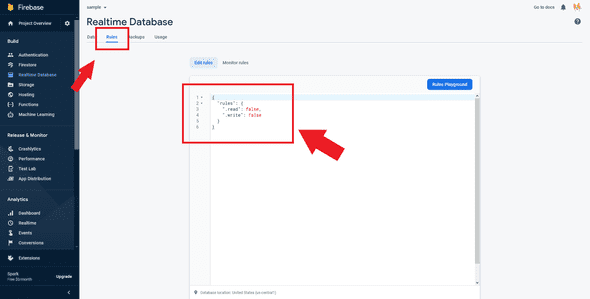 into this:
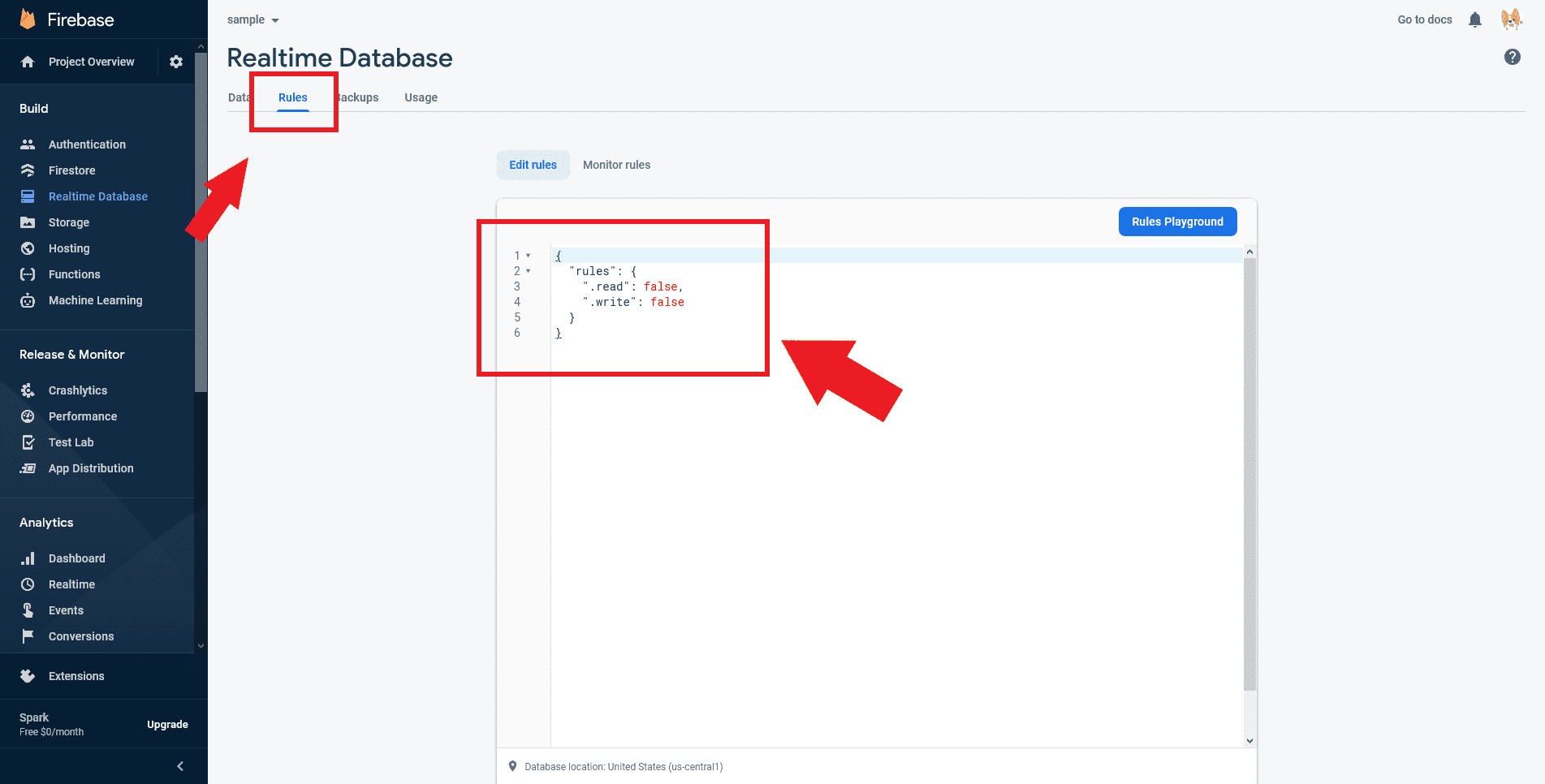
"rules": {
	".read": true,
	".write": true
}
Screenshots
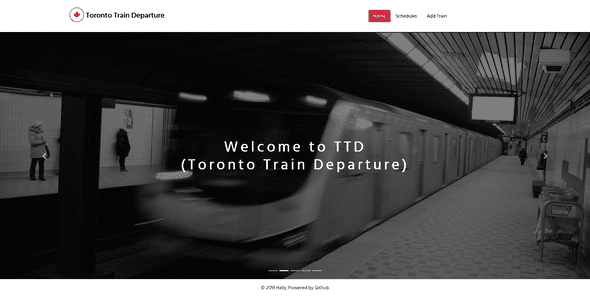
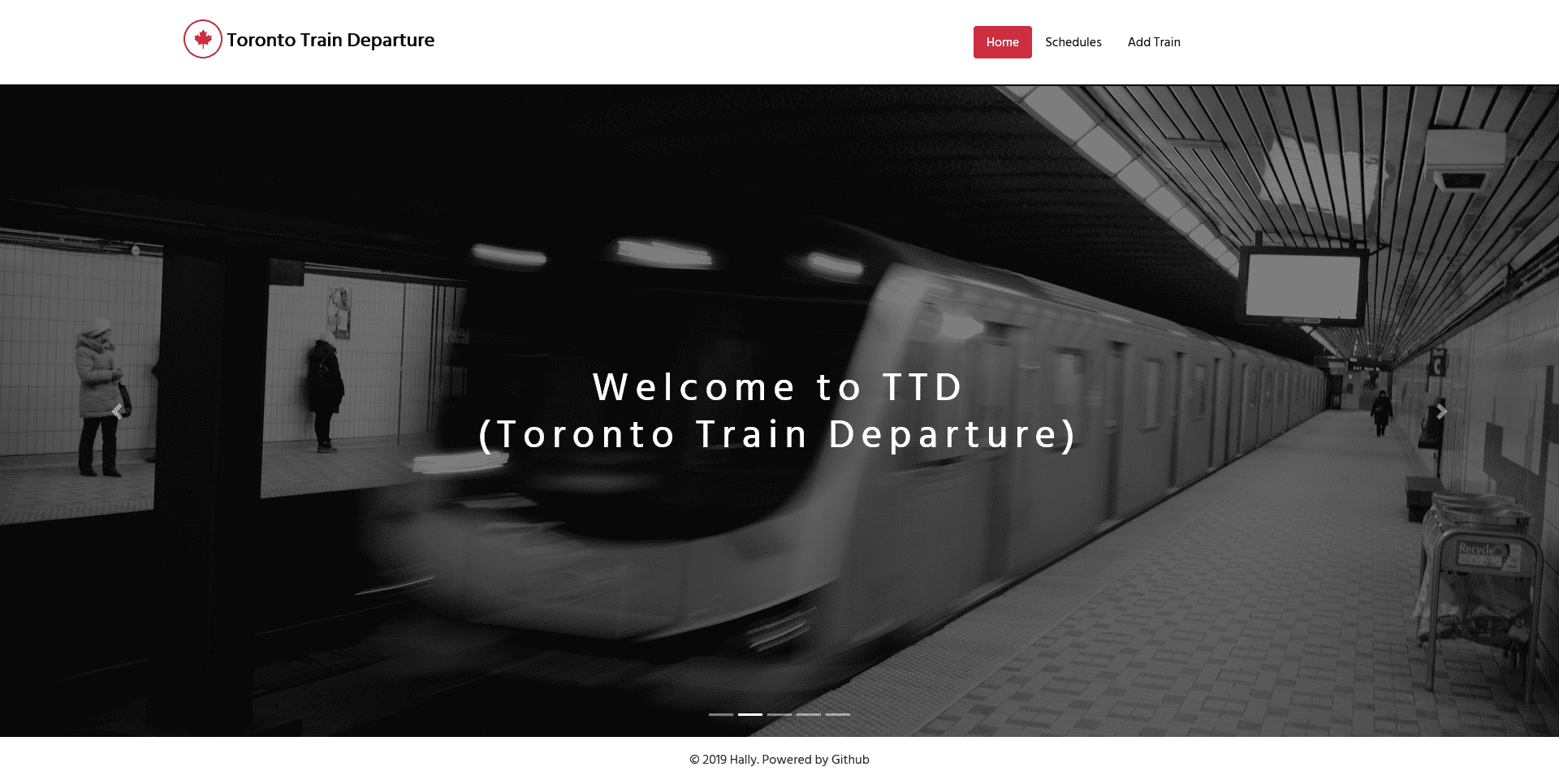
- Home Page
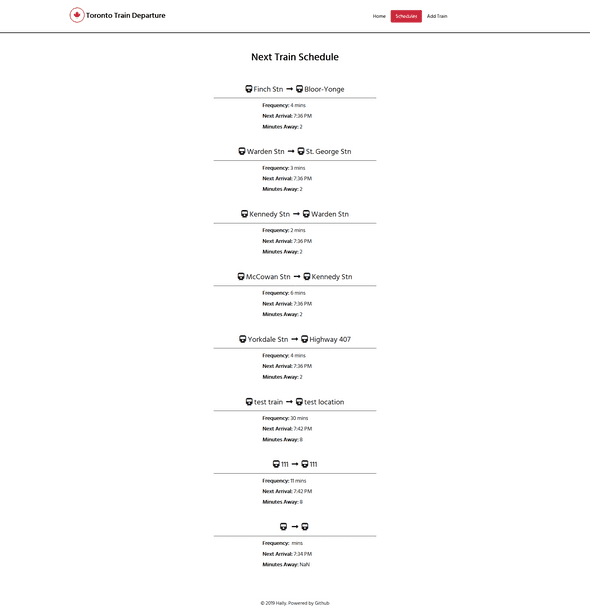
- Schedules Page
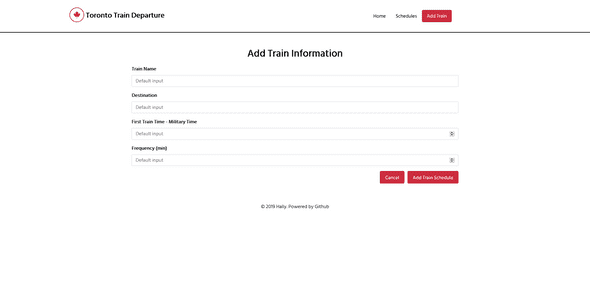
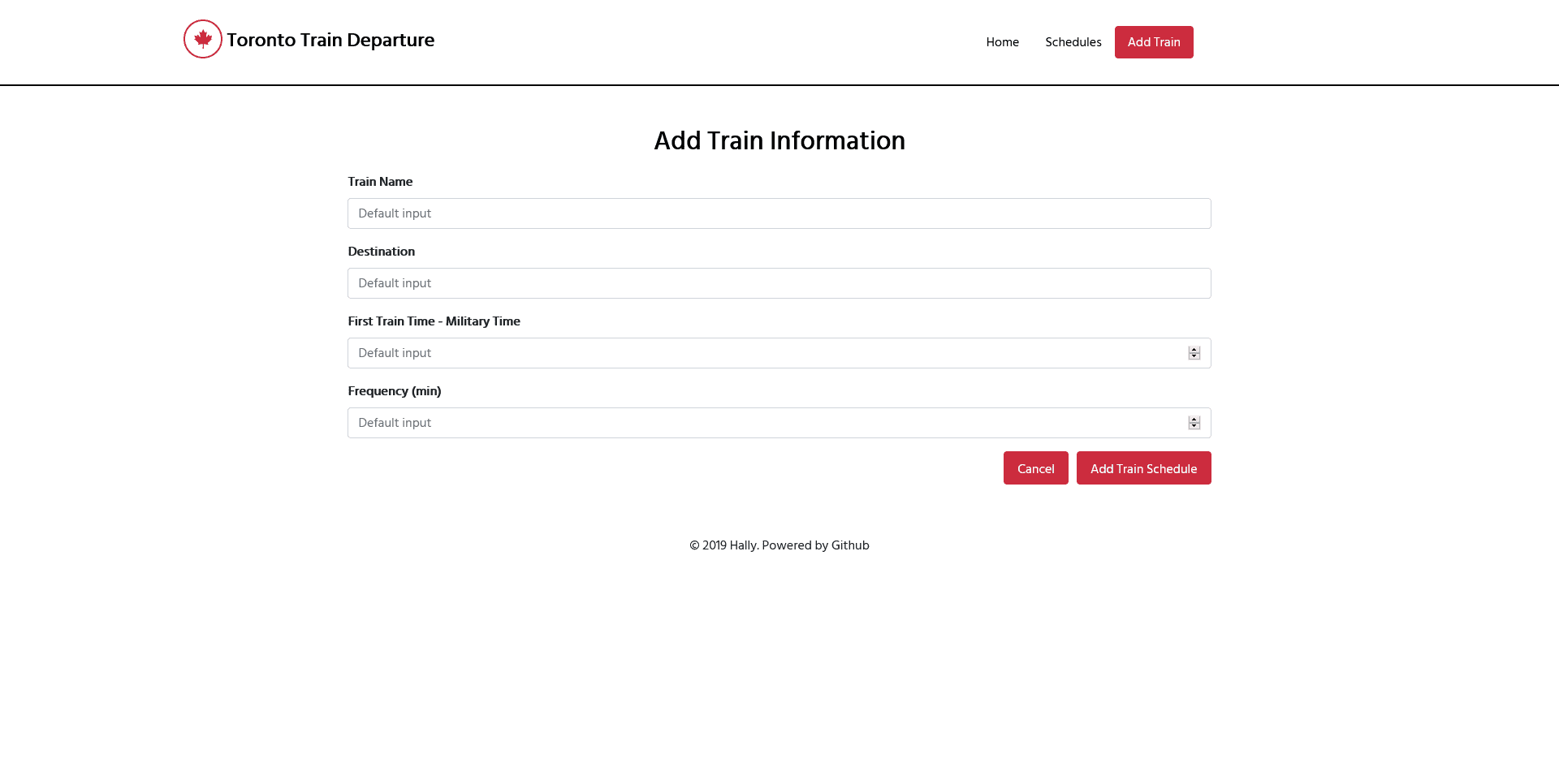
- Add Train Page
License
Distributed under the MIT License